
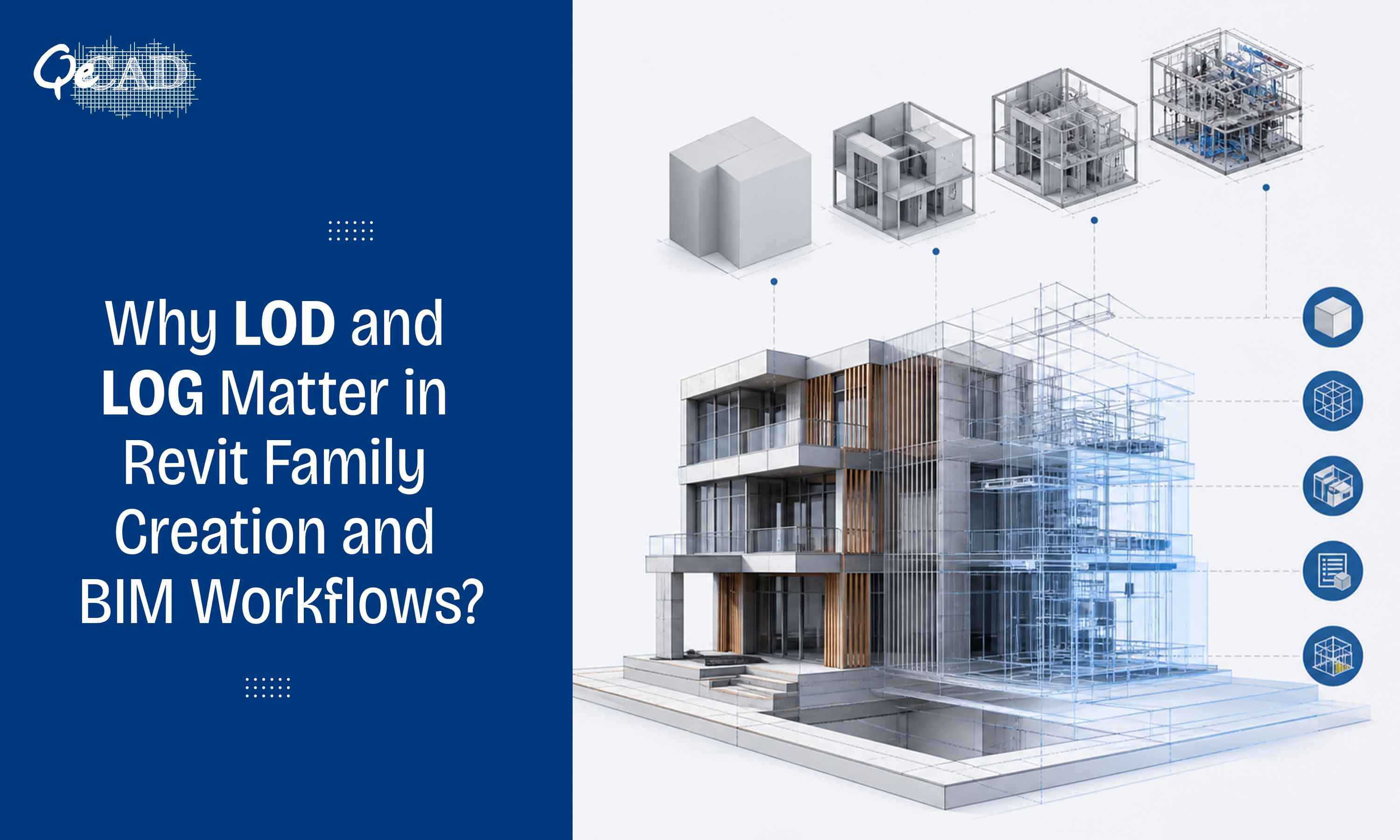
In the world of BIM, precision isn’t just about accuracy—it’s about control. And when working with Revit families, two concepts often get confused: Level of Detail (LOD) and Level of Geometry (LOG). While they may sound similar but they both serve very different purposes and directly impacts the model usability, performance and downstream coordination.
Understanding the distinction between the two is critical for creating efficient, scalable BIM models.
What is Level of Detail (LOD)?
Level of Detail (LOD) refers to how much information and complexity is displayed in a Revit model at different views or scales.
Revit typically provides three built-in detail levels:
• Coarse
• Medium
• Fine
Each level controls the visibility of elements within a family.
For example:
• A door family in Coarse view may seem as a simple rectangle.
• In Medium, it may show panels and frames.
• In Fine, it includes intricate components like hinges or trims.
Key Purpose:
LOD is primarily about the visual representation and documentation clarity, not geometry complexity.
What is Level of Geometry (LOG)?
Level of Geometry (LOG) refers to the actual geometric complexity embedded within a Revit family—how detailed and heavy the model elements are in terms of polygons, shapes and parametric components.
For example:
• A highly detailed chair family with curves, bolts and fabric folds has a high LOG.
• A simplified block representing the same chair has a low LOG.
Key Purpose:
LOG directly impacts:
• Model performances
• File size
• Rendering time
• Clash detection efficiency
LOD vs LOG: The Core Difference
| Aspect | Level of Detail (LOD) | Level of Geometry (LOG) |
| Definition | Visual representation control | Actual geometric complexity |
| Controlled by | View settings in Revit | Family modeling approach |
| Impact | Clarity in drawings | Model performance & speed |
| Flexibility | Dynamic (changes per view) | Static (built into the family) |
In simple terms:
• LOD is what you see
• LOG is what exists
Why This Distinction Matters?
Many BIM inefficiencies arises when high LOG families are used unnecessarily, even if the LOD is set to Coarse.
Common Mistake:
Using highly detailed manufacturer families (high LOG) across all project stages.
Result:
• Slower model performance
• Increased file size
• Difficulty in coordination
Even if you switch to Coarse view, the heavy geometry still exists in the background.
Best Practices for Optimizing LOD and LOG
- Model with Purpose
Not every element needs to be highly detailed. Align geometry with the project stage:
• Concept Design → Low LOG
• Detailed Design → Moderate LOG
• Fabrication → High LOG
- Use Visibility Controls Smartly
Leverage Revit’s visibility settings to assign the elements to Coarse, Medium and Fine levels strategically.
- Avoid Over-Modeling
If it won’t be used for coordination, analysis or fabrication—don’t model it.
- Create Multiple Family Types
Develop lightweight and detailed versions of families for different use cases.
- Optimize Imported Content
Third-party or manufacturer families often comes with the excessive geometry—simplify them before use.
Real-World Impact in BIM Projects
Balancing LOD and LOG becomes especially important in:
• Clash detection workflows
• Large-scale infrastructural models
• MEP coordination
• Facility management handover models
An optimized approach ensures:
• Faster model navigation
• Efficient collaboration
• Reduced reworks
• Better project outcomes
Conclusion
Understanding the difference between Level of Detail and Level of Geometry is not just a technical nuance—it’s a strategic advantage in BIM execution.
While LOD helps to communicate the design intent clearly, LOG determines how efficiently your model performs. The goal is not to maximize both—but to balance them intelligently based on the project requirements.
At scale, this distinction can be the difference between a model that supports decision-making—and one that slows it down.
If you’re looking to optimize your Revit families and improve the model performance, integrating structured BIM Services and expert-led modeling workflows can significantly enhance the efficiency across project stages.